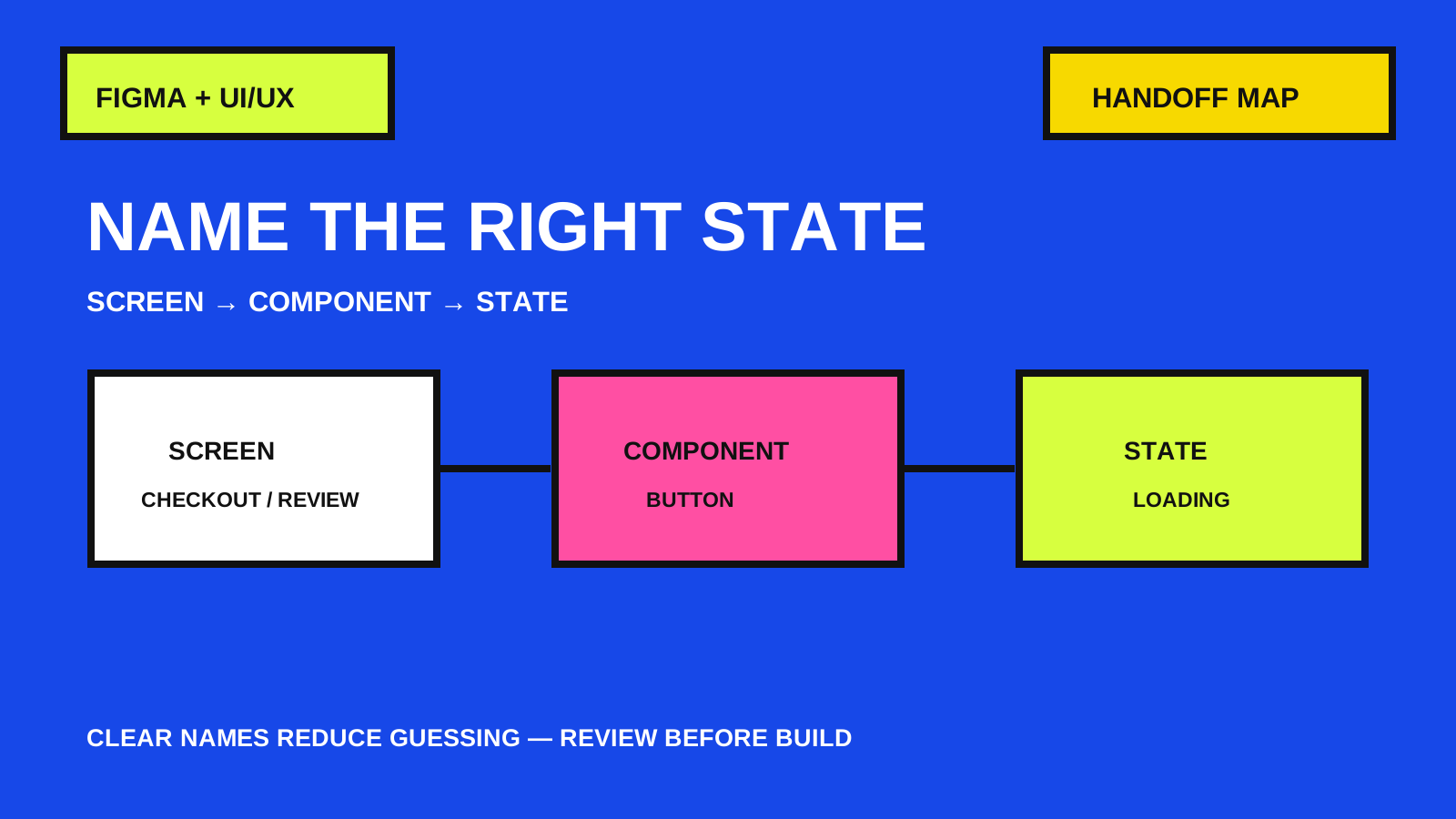
A useful name answers where, what and which state
A handoff becomes harder when the canvas contains frames called Frame 143, Copy 7 and Final Final. The layout may be correct, but the person implementing it still has to guess which screen is current, which component is reusable and which state is intentional.
The goal is not to design an elaborate taxonomy. It is to give the important objects stable, readable names that help someone navigate from page to section, screen, component and state. This guide uses a compact convention that can be applied to one small product flow before a wider cleanup.
1. Separate navigation levels before renaming layers
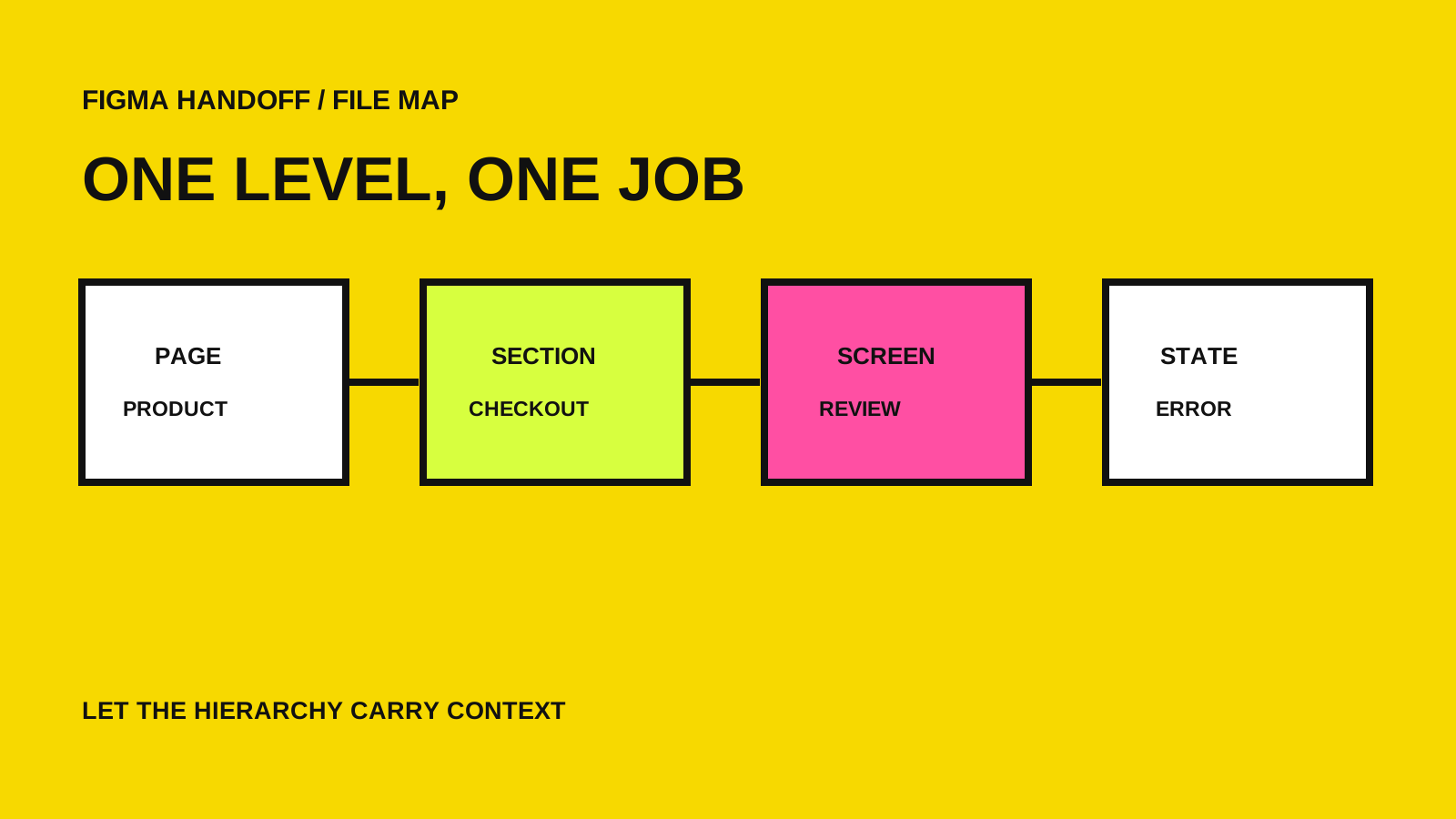
Use pages for broad areas such as Foundations, Components and Product. Within a product page, use labeled sections for related flows or milestones. Figma documents pages as an organizational layer and sections as labeled canvas regions that can guide collaborators and be marked ready for development.
Inside a section, give top-level frames names that describe both destination and condition. Checkout / Review / Desktop is more useful than Desktop 4. Keep exploration frames in a clearly labeled Work in progress section so a developer does not mistake them for an approved route.
Do not encode every detail in one long layer name. Let the hierarchy carry context: page for domain, section for flow, frame for screen and component properties for reusable states.
2. Name components by role, then describe variations with properties
Name a reusable component for the job it performs: Button, Alert, Navigation item or Search field. Figma recommends slash-separated component names such as Component/State or Icon/Name because the slashes create hierarchy in the Assets panel and instance menu.
For a component set, use descriptive property names instead of leaving generic labels such as Variant or Property 2. A compact button set might expose Intent=Primary, Size=Medium, State=Default and Icon=True. Figma's component-property guidance distinguishes variant, boolean, text and instance-swap properties; choose the property type that represents the intended control instead of multiplying nearly identical components.
Keep values short and mutually understandable. Default, Hover, Focus, Disabled and Loading describe interaction states more clearly than Blue, Dark blue and Gray. If production code already has established component or state names, align with the team rather than inventing a parallel vocabulary.
3. Make the handoff state explicit on the canvas
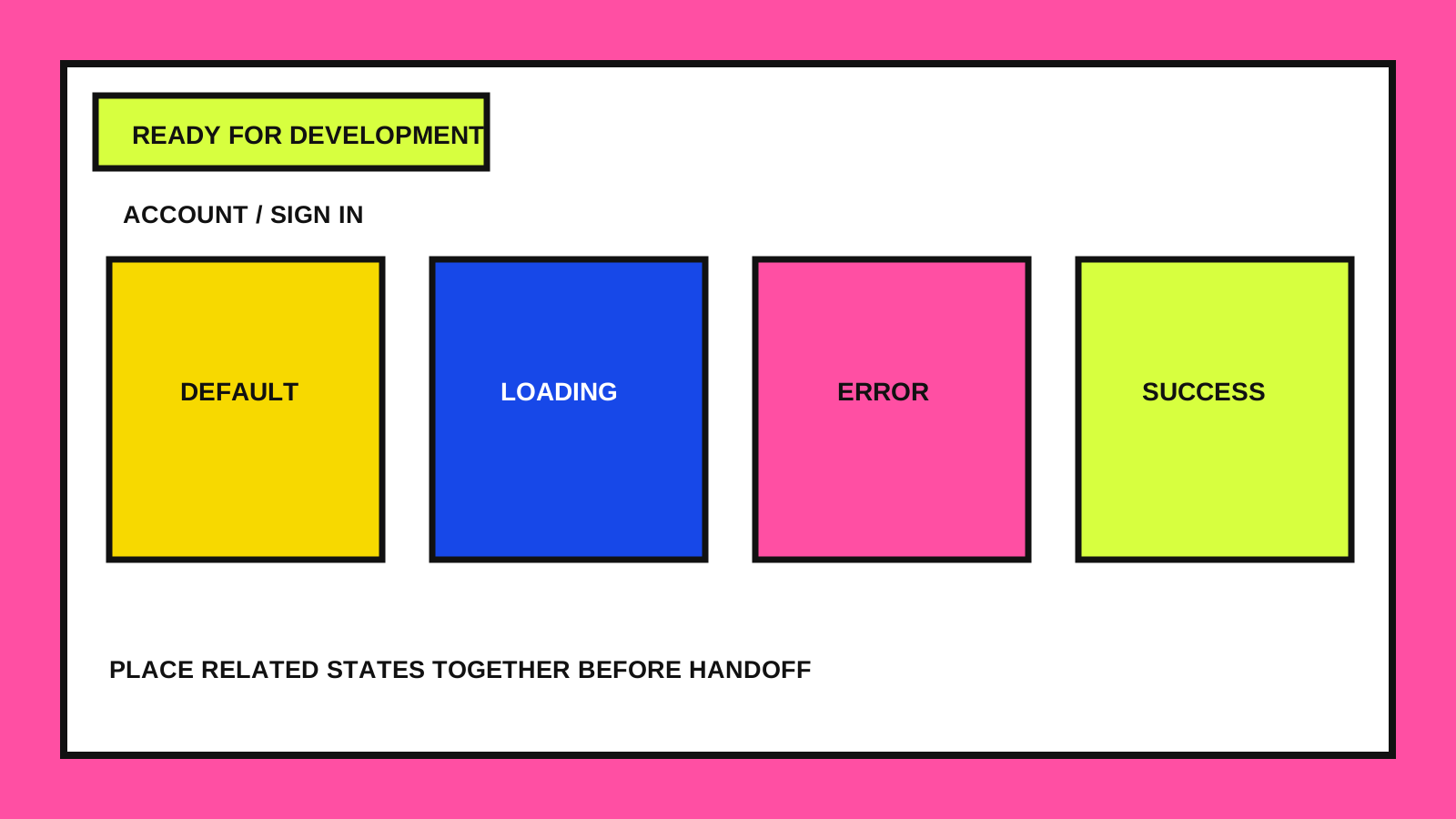
Choose one representative top-level frame for each state a developer needs to implement. Name it with the same order every time, for example Account / Sign in / Error / Mobile. Place related states together so Default, Loading, Empty, Error and Success can be compared without searching the whole file.
Use a section label or status marker to distinguish Ready for development from exploration or review. Figma supports marking sections ready for development, but a status label does not replace a conversation about scope, behavior or acceptance criteria.
Add a short component description when the name cannot explain usage limits or behavior. Figma surfaces component descriptions in the Assets panel and, for people with access, in Dev Mode. Keep the note focused on decisions a consumer cannot infer from the pixels.
4. Run a five-minute findability check
Ask someone who did not organize the file to locate one screen, one component and one non-default state without verbal directions. If they cannot find them, change the hierarchy or names before adding more documentation.
Check that the default variant is intentional. Figma uses the top-left variant as the default representation of a component set in the Assets panel, so the canvas arrangement can influence what collaborators encounter first.
Finally, select a representative frame in Dev Mode or the available inspection view. Confirm that component names, property values, descriptions and assets still make sense from the implementation side. Dev Mode availability depends on plan and seat, so the underlying file structure should remain understandable without relying on that feature alone.
- Can someone find the approved flow from the page and section names?
- Do component names describe roles rather than colors or coordinates?
- Are variant properties descriptive and values consistent?
- Are default, loading, empty, error and success states accounted for where relevant?
- Is the ready state visually separated from exploration?
Make the file easier to read before making it bigger
A dependable Figma handoff does not require perfect naming everywhere. Start with the path a developer must implement: organize the flow, name its top-level frames, use role-based component names, expose clear properties and place required states together.
Try the findability check on one non-sensitive flow you control, then keep the convention only if it makes navigation faster and ambiguity smaller. For broader interface or product workflow work, the services and contact pages provide a simple next step. Figma documentation was checked on October 22, 2026.