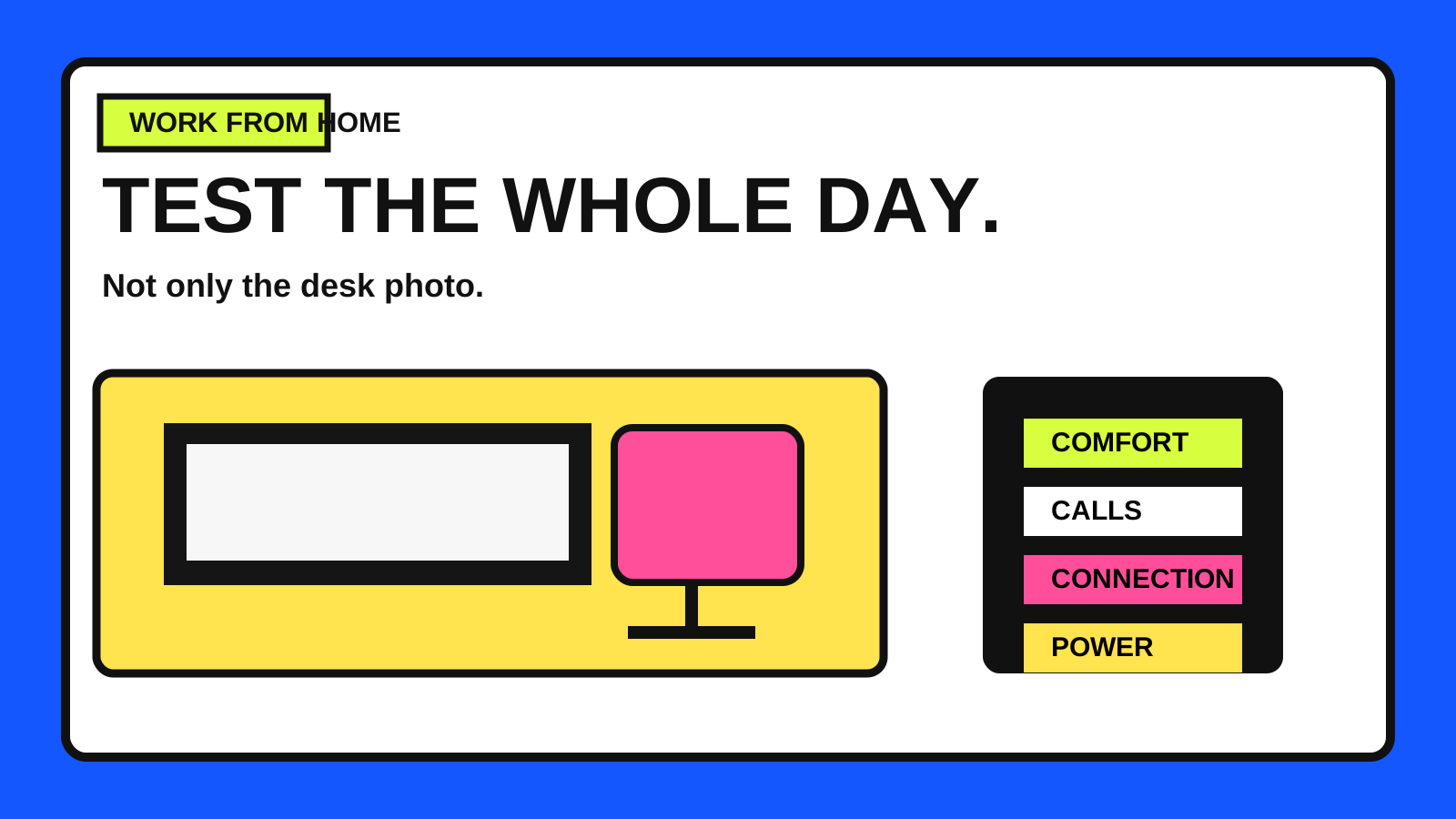
A shopping list cannot prove that a setup works
A desk can look complete in a photo and still fail during an ordinary workday. The chair may become uncomfortable after two hours, the camera may point toward a bright window, Wi-Fi may weaken when the household gets busy, or the laptop may run out of ports when a meeting starts.
A full-day dry run tests the system under realistic conditions before the day matters. Use the same room, device, applications, meeting platform and working hours you expect to use. The goal is not to buy more equipment. It is to find specific friction while there is time to fix it.
- Choose a representative day with focused work, file transfers and at least one test call.
- Start and finish at the hours you expect to keep.
- Record problems when they happen instead of relying on memory at the end.
- Change one thing at a time so you can tell whether it helped.
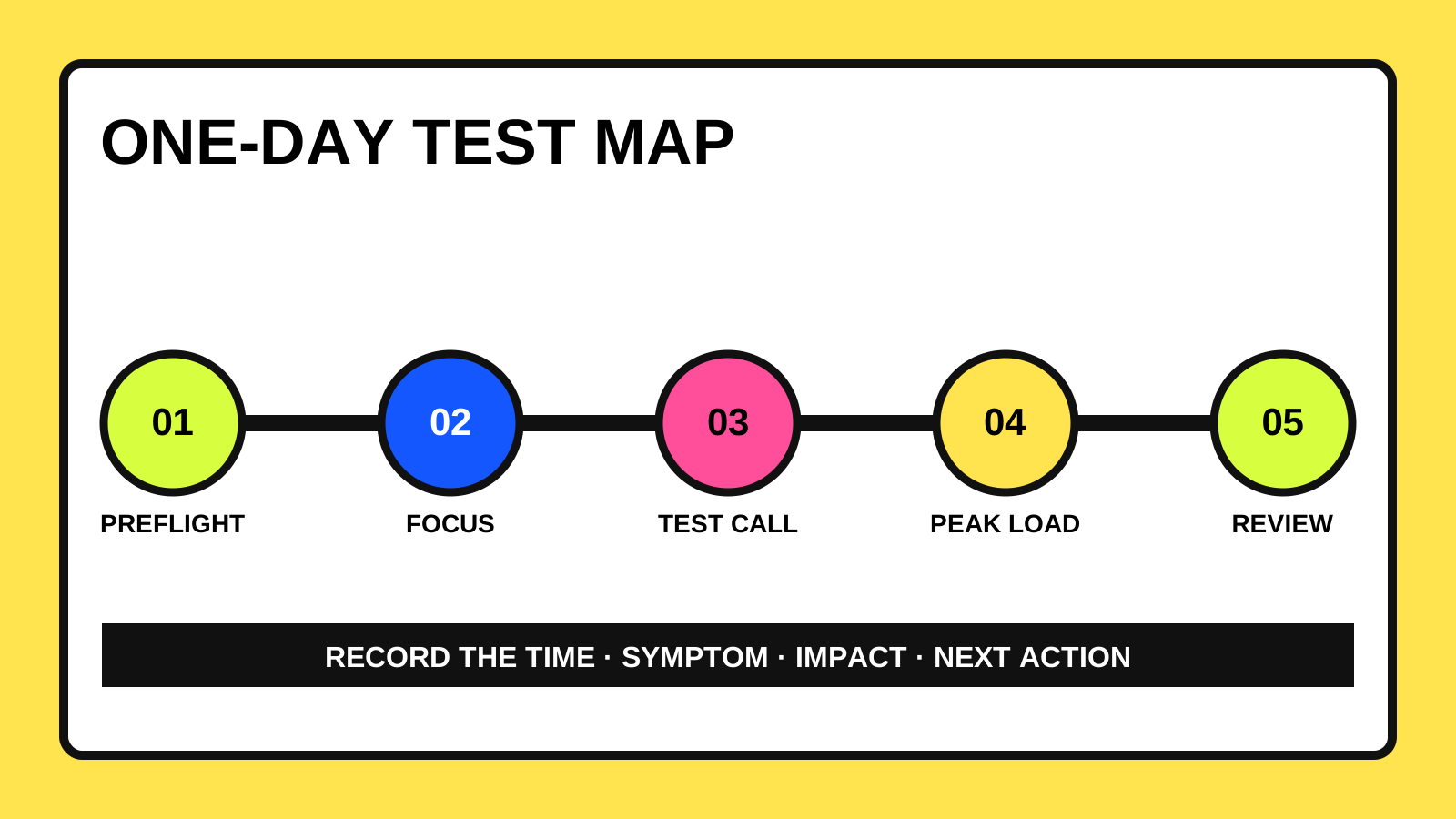
Prepare a simple test sheet before the day starts
Create a small table with time, task, problem, impact and next action. Add a starting checklist for power, internet, audio, video, lighting, desk position and the files or accounts needed for work.
Write down the fallback for anything that could stop the day. That might be a charged phone with mobile data, a second headset, an offline copy of the document you need, or the correct support contact. A fallback is useful only when it is allowed by the employer or client and does not bypass their security rules.
- What must work continuously?
- What can briefly fail without losing work?
- What needs an approved backup?
- Who needs to know if the problem affects availability?
Adjust the workstation, then let your body test it
Begin with a neutral, supported position rather than copying a desk photo. OSHA's computer workstation guidance recommends placing the monitor directly in front, keeping its top at or below eye level, supporting the back and feet, and keeping the keyboard and mouse close enough to avoid repeated reaching.
Do not declare the position solved after five minutes. During the dry run, note when you lean forward, lift a shoulder, bend the wrists, squint, or move the laptop to escape glare. Those moments identify the adjustment that matters. If a laptop is the main computer for intensive typing, an external keyboard and monitor or raised display can help separate screen height from typing height.
- Check comfort after the first hour, after lunch and near the end of the day.
- Move regularly and vary posture instead of trying to hold one perfect pose.
- Keep frequently used items within easy reach.
- Treat pain, numbness or persistent discomfort as a reason to stop and seek appropriate professional guidance.
Test the connection during the hours you will actually work
A single speed-test result is not the same as a dependable workday. Run the normal workload: join a call, open cloud files, upload a realistic non-sensitive sample, use the VPN or remote-access method required by the organization, and repeat the check when the household network is busiest.
Record symptoms rather than only headline speeds: frozen video, delayed audio, reconnects, slow uploads and dead zones. If Wi-Fi is inconsistent, compare the approved alternatives available to you, such as moving closer to the router or using a wired connection. Do not reconfigure an employer-managed device or security tool without permission.
- Test morning, midday and the busiest household period.
- Keep the laptop in its real desk position during the test.
- Confirm the approved fallback connection before depending on it.
- Note whether large sync jobs or updates compete with calls.
Make a real test call, not only a camera preview
Use the meeting platform required for work. Confirm the selected microphone, speaker and camera, then make a test call or join a private test meeting. Microsoft Teams provides a test-call function in supported desktop configurations, while Zoom offers a test meeting and camera preview.
Speak at your normal volume, play the recording back, and listen for echo, keyboard noise, fans and sounds from the room. Check the frame at the time of day when meetings usually happen; window light and room noise can change substantially between morning and afternoon.
- Verify the correct microphone and speaker are selected.
- Check that the camera angle and background reveal no sensitive information.
- Test mute, headphones and the reconnect path.
- Place a test event on the calendar so notifications and permissions are exercised too.
Include power, heat, files and privacy in the dry run
Use the laptop, displays, dock and accessories together for several hours. Watch for loose cables, a charger that cannot keep up, an overloaded adapter, excessive heat or a dock that disconnects under load. Follow the manufacturers' instructions and stop using damaged or unusually hot equipment.
Lock the screen when leaving the desk, keep work papers and conversations away from visitors, and use only approved storage and backup locations. CISA's mobile workplace guidance recommends keeping work material secure and maintaining current security protections. The dry run should confirm that those habits fit the room, not invent a workaround around policy.
- Confirm power cables reach safely without becoming a trip hazard.
- Check that sleep, lock and update behavior do not interrupt scheduled work.
- Store test files where the organization permits.
- End the day by logging off remote sessions and securing devices and papers.
Review the day by impact, not by annoyance
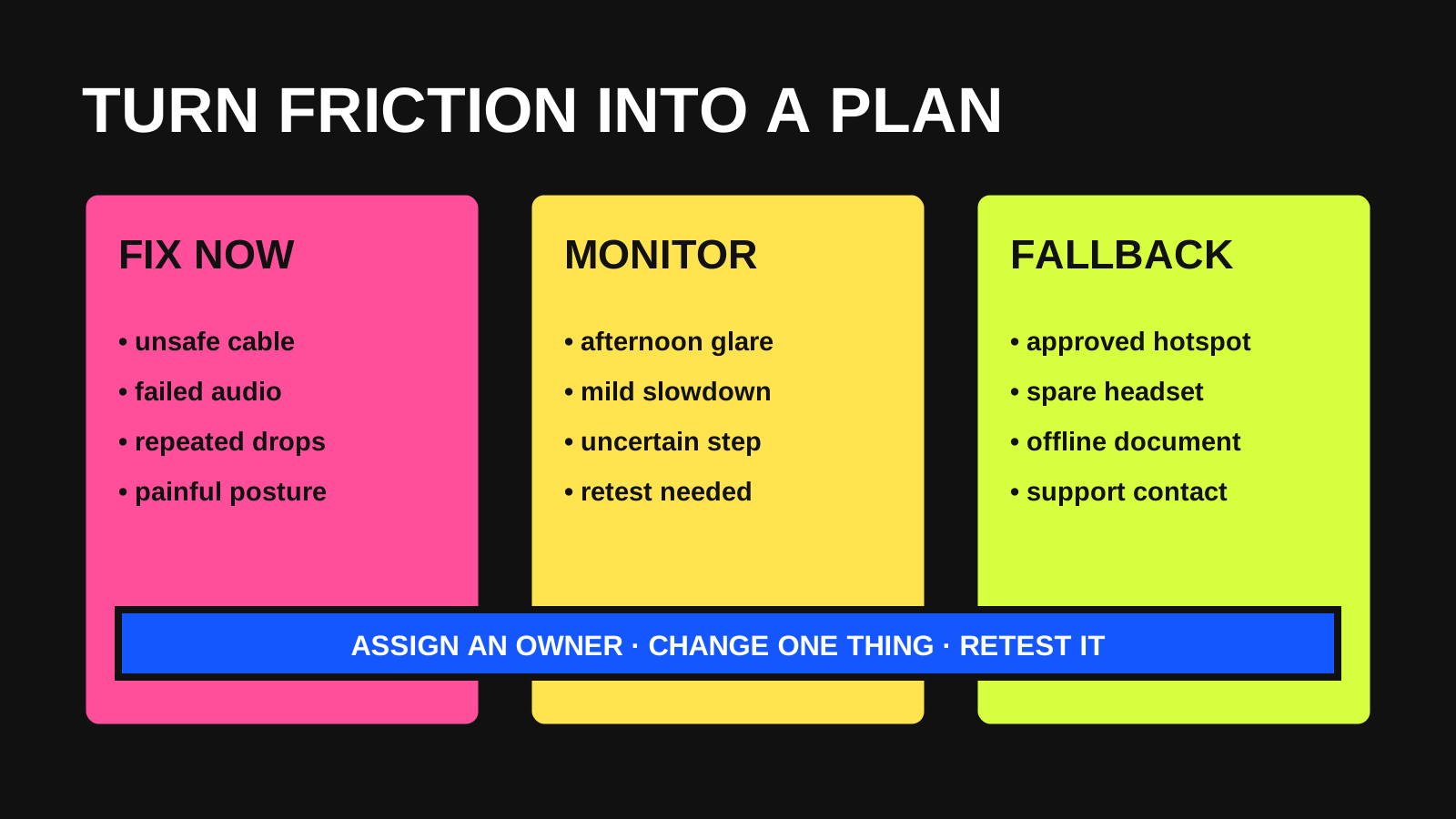
At the end of the dry run, group every finding into three buckets: fix before relying on the setup, monitor during the next test, or keep as an approved fallback. Prioritize anything that could stop communication, expose information, lose work or cause physical discomfort.
Retest the changed part instead of assuming a purchase solved it. A better chair adjustment, moved lamp, quieter microphone position or wired connection may be more useful than replacing the whole setup.
- Fix now: repeated disconnects, unsafe cabling, painful posture, failed audio, missing access or exposed information.
- Monitor: occasional glare, a mild afternoon slowdown or a workflow that needs another realistic sample.
- Fallback: a documented, permitted alternative for internet, audio, power or file access.
- Owner: identify whether the next step belongs to you, IT, facilities, the employer or the service provider.
One realistic day produces a better plan than a perfect desk photo
A home workstation is a working system made of the room, body, network, power, devices, software and rules around the work. Testing all of them together reveals problems that individual product checks miss.
Run the dry day before an important start, after a major equipment change, or when moving the setup to a new room. Keep the notes short, fix the highest-impact issue, and repeat only the part that changed.