Make the intended account easier to recognize
You open a shared document, type a reply and only then notice the avatar belongs to your personal account. A second tab would not have made that mistake easier to spot. A clearly named browser profile can provide a more deliberate starting point for work.
This guide is for a desktop computer you are authorized to use. The goal is a repeatable browsing routine: choose the right profile, confirm the website account, then act. It does not assume that every organization permits personal browsing on its equipment. Follow the device owner's policy first.
What a profile separates—and where the boundary stops
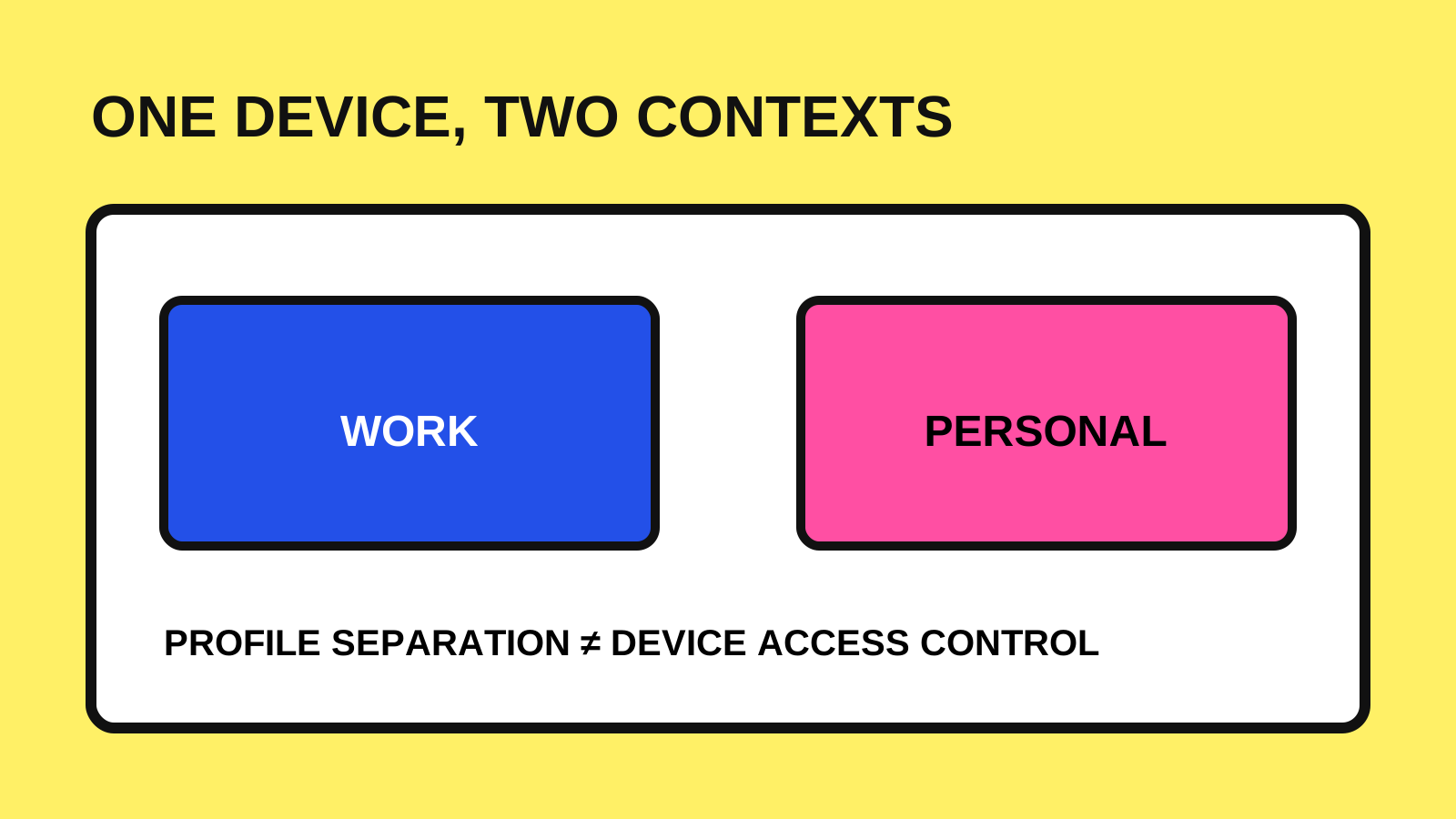
Google documents that Chrome profiles keep items such as history, bookmarks, passwords and settings separate. This helps when work and personal accounts need different browsing contexts. A profile name is a local label, though; it does not itself create a new email or website account.
A profile is also not a password-protected room on the computer. Google explicitly warns that someone with access to the device can switch to another Chrome profile. Treat profile separation as organization, not as protection against another person using your unlocked session.
For Firefox users, Mozilla documents profiles as separate collections of browsing data, bookmarks, passwords, settings and add-ons. Its current guide notes that the newer profile menu may vary by rollout and that the original about:profiles manager remains available. Check the linked instructions for your installed version.
1. Create a recognizable work starting point
In desktop Chrome, open the profile menu and choose Add Chrome profile. Give it a short purpose-based name such as Work, then choose a visibly different color or picture. Google describes browser sign-in as an optional choice during setup; review the prompts before accepting them.
Use labels that remain useful when several windows are open. “Blue Work” and “Personal” are easier to recognize than two identical avatars. Avoid putting a client name or confidential project label in a profile title if it will appear during screen sharing.
Start with just the contexts you need. One work profile and one personal profile are enough for this exercise. Creating a separate profile for every website can make the routine harder to remember without solving the original account-selection problem.
2. Review browser sign-in and website sign-in separately
Before adding bookmarks or saving credentials, check the account shown in the browser's own profile settings. Then open the work website and check its account menu too. These are two checks with different purposes: one identifies the browser context; the other identifies the account that will perform an action on that website.
Review whether browser data will be saved to an account or made available on other devices. If your intended separation is Work versus Personal, do not assume that using the same browser account in both profiles will preserve that intention across sync settings. Check the actual settings and your organization's rules before moving information.
Keep the first setup small: add the approved work homepage, a few relevant bookmarks and only the extensions you need. Each additional customization should have a purpose you can explain. The aim is a dependable entry point, not a complete migration in one sitting.
3. Run a small account-mix-up test
Use a harmless document or draft that you control. In the work profile, open it and confirm the website's account indicator before editing. In the personal profile, open a harmless personal resource and confirm that account separately. Do not send a real message just to test the setup.
Next, open a harmless link from the application you normally use for work messages. Observe which browser window and profile receive it. Link routing can depend on your setup; the useful result is learning what this computer actually does. If it opens the wrong context, switch deliberately and recheck the website account before continuing.
Finally, close and reopen the browser. Make sure you can identify the right profile without relying on a particular tab order. Repeat this check after changing defaults, reinstalling the browser or moving to another device.
- Can I recognize Work before reading a page?
- Does the website show the intended account?
- Do links from another application open where I expect?
- Can I repeat the routine after reopening the browser?
4. Keep the routine useful over time
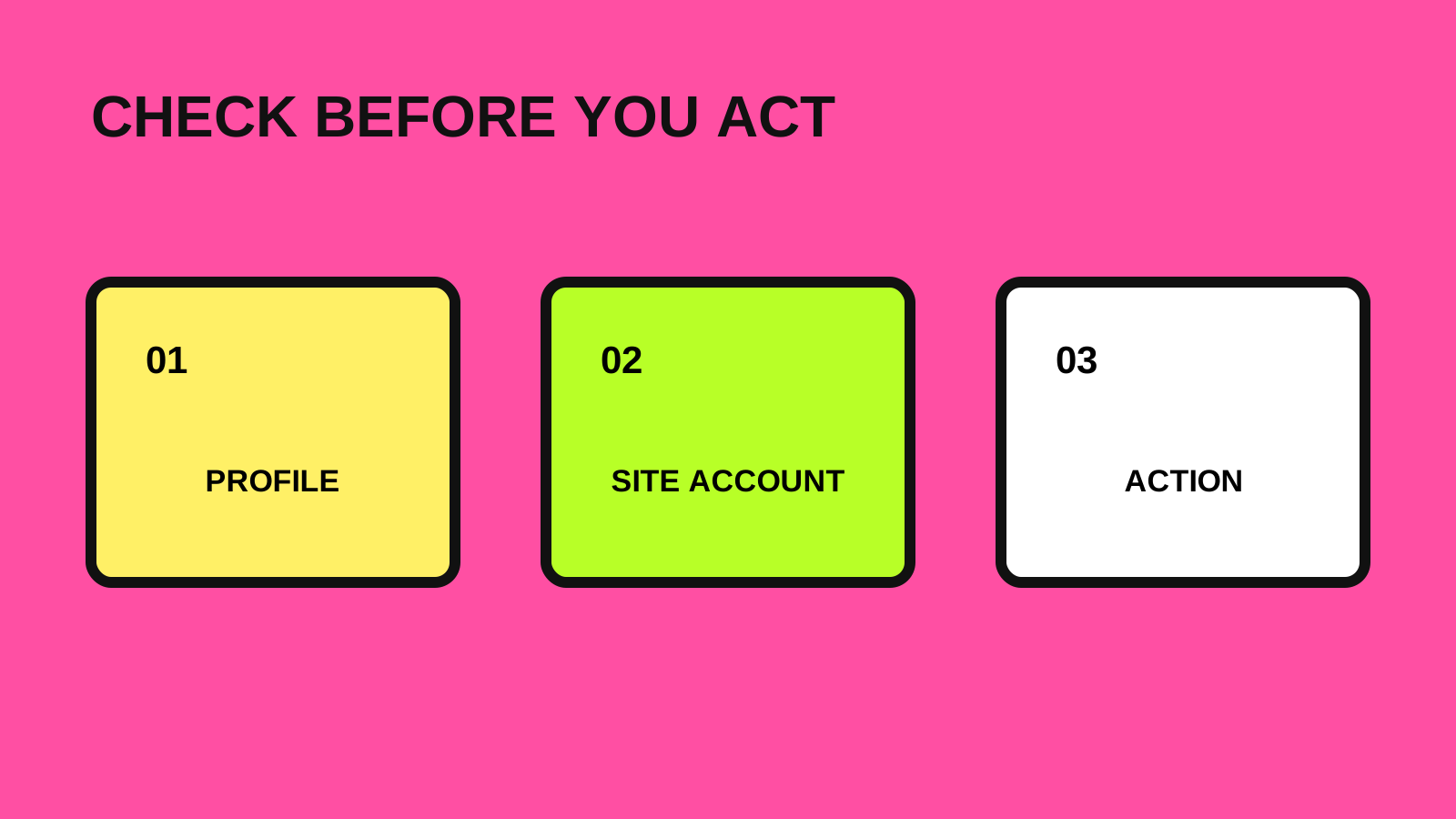
At the start of a work session, choose the work profile explicitly. Before a consequential action—sending a message, granting access or uploading a file—check the website account again. A colored frame is a helpful cue, but the account shown by the service is the stronger confirmation.
For shared computers, follow the approved device-access arrangements rather than relying on profiles to keep people out. For managed work devices, ask the administrator which account and sync choices are allowed. This setup should fit the existing access policy.
Before removing an old profile, check whether anything stored only there is still needed. Google warns that deleting a profile removes its locally stored profile information. Cleanup should be a separate, deliberate task after you have checked what must be retained.
A small setup with a clear test
A useful profile setup is one you can recognize and repeat. Choose a purpose-based name, review the browser account and data settings, verify the website account, and test how links arrive from outside the browser. Keep the limitations visible: profiles help organize browsing, while device access and service permissions still need their own controls.
Try the routine with one harmless work draft before expanding it. If account confusion is part of a wider approval or content workflow, map that process first. The related Insights and services pages offer a starting point for that discussion. Official browser guidance was checked on October 15, 2026.